 YouTip
Python Vscode Setup
# Setting Up Python in Visual Studio Code (VS Code)
Visual Studio Code (VS Code) is a free, open-source, cross-platform code editor developed by Microsoft. It is highly extensible, lightweight, and one of the most popular environments for Python development.
This comprehensive guide will walk you through setting up Python in VS Code, configuring the environment, and running your first Python script.
---
## Prerequisites
Before configuring VS Code, ensure you have the following installed on your system:
1. **Python 3**: Download and install the latest version from the official (https://www.python.org/). *Make sure to check the box that says "Add Python to PATH" during installation.*
2. **VS Code**: Download and install the editor from the official (https://code.visualstudio.com/).
---
## Step 1: Installing VS Code and the Python Extension
### 1. Install VS Code
Download the installer for your operating system (Windows, macOS, or Linux) and follow the installation wizard.
*Note for Windows Users:* During installation, it is highly recommended to check all the options shown below, especially **"Add to PATH"** and the **"Open with Code"** actions. This allows you to open files and folders in VS Code directly from your file explorer.
!(https://www.runoob.com/wp-content/uploads/2021/08/RM04TZb.png)
### 2. Install the Python Extension
To get full language support for Python (including IntelliSense, debugging, linting, and code formatting), you need to install the official Microsoft Python extension.
1. Open VS Code.
2. Click on the **Extensions** icon on the Activity Bar on the left side of the window (or press `Ctrl+Shift+X` / `Cmd+Shift+X`).
3. Search for **Python**.
4. Find the extension published by **Microsoft** and click **Install**.
!(https://www.runoob.com/wp-content/uploads/2021/08/de824f4aad280b93a3c54a5a088c81ca.png)
---
## Step 2: Creating and Running a Single Python File
If you want to quickly write and run a single Python script without creating a project folder, follow these steps:
1. Open VS Code and click **File > New Text File** (or press `Ctrl+N` / `Cmd+N`).
2. Click **Select a language** at the top of the editor.
3. Type **Python** in the search box and select it. This tells VS Code to treat the file as a Python script.
!(https://www.runoob.com/wp-content/uploads/2021/08/vscode-py-3.jpg)
4. Write your Python code in the editor:
```python
print("Hello, YouTip!")
```
5. Right-click anywhere inside the editor window and select **Run File in Interactive Window**.
*Note: If VS Code prompts you to install additional extensions (like Jupyter) to run in the interactive window, click **Install**. Otherwise, it may hang while trying to connect to the Python kernel.*
!(https://www.runoob.com/wp-content/uploads/2021/08/vscode-py-4.jpeg)
---
## Step 3: Working with a Project Folder (Recommended)
For real-world development, it is best practice to organize your code inside a dedicated project folder.
### 1. Open a Project Folder
1. Create a folder on your computer named `youtip-python-demo`.
2. In VS Code, go to **File > Open Folder...** and select your newly created folder.
!(https://www.runoob.com/wp-content/uploads/2021/08/326906F8-C20B-4D76-AC86-FED6544B3DB5.jpeg)
### 2. Create a Python File
1. Click the **New File** icon next to your folder name in the Explorer sidebar.
2. Name the file `test.py` (the `.py` extension is crucial as it tells VS Code this is a Python file).
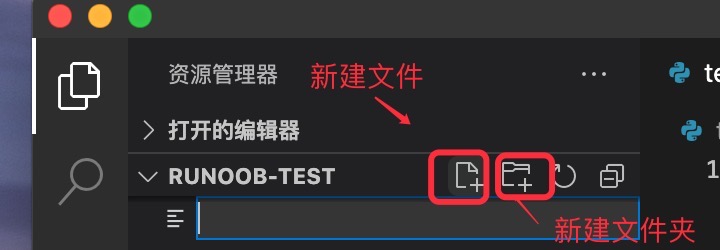
> **Note:** You might see a `.vscode` folder automatically generated in your directory. This folder contains workspace-specific configurations (like interpreter paths and debug settings) and can be ignored for now.
### 3. Write and Run Your Code
Add the following code to `test.py`:
```python
# A simple greeting program
print("Hello, YouTip!")
```
There are two primary ways to run this file:
#### Method A: Using the Play Button (Recommended)
Click the green **Play (Run Python File)** button in the top-right corner of the editor. This will automatically open the integrated terminal and execute your script.
!(https://www.runoob.com/wp-content/uploads/2021/08/438AF06B-6E02-42F0-9062-53337E8E90AD.jpg)
#### Method B: Using the Right-Click Context Menu
Right-click anywhere inside the code editor or on the file name in the Explorer sidebar, and select **Run Python File in Terminal**.
!(https://www.runoob.com/wp-content/uploads/2021/08/16743E52-BE92-424B-AE7B-F9F602A44462.jpeg)
---
## Important Considerations & Troubleshooting
* **Selecting the Correct Interpreter**: If you have multiple versions of Python installed, make sure VS Code is using the correct one. Press `Ctrl+Shift+P` (or `Cmd+Shift+P` on Mac) to open the Command Palette, type `Python: Select Interpreter`, and choose your preferred Python environment from the list.
* **Terminal Execution Policy (Windows)**: If you get an execution policy error in the PowerShell terminal when trying to run scripts, you can switch the default terminal in VS Code to **Command Prompt (cmd)** or run VS Code as an Administrator to adjust your PowerShell execution policies.
* **Virtual Environments**: For larger projects, it is highly recommended to use virtual environments (`venv`). When you create a virtual environment inside your project folder, VS Code will usually detect it automatically and ask if you want to select it as your workspace interpreter.